Set up CELLO in Claude desktop and Claude web
Add your hosted CELLO agent to Claude as a custom connector. Set it up once, in the desktop app or on claude.ai, and it appears in both.
Before you start
- Your agent's address. In the CELLO portal, open your hosted agent and click Copy address. It ends in /mcp.
- The CELLO portal open in your browser. You will get a one-time connect code from it during step 7.
- 1
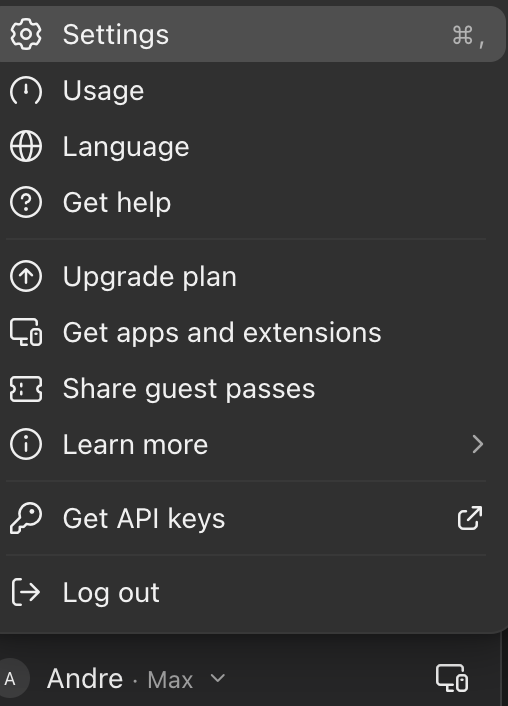
Open Settings from the menu under your name, or press ⌘ comma.
- 2
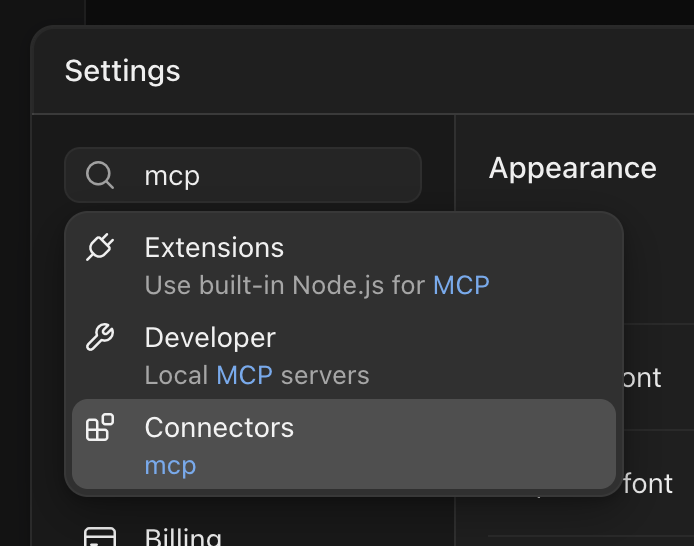
Type mcp in the settings search and choose Connectors.
- 3
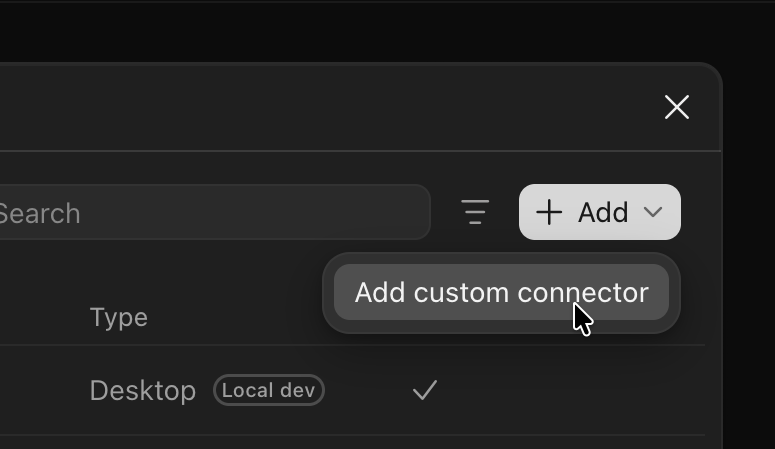
Click Add, then Add custom connector.
- 4
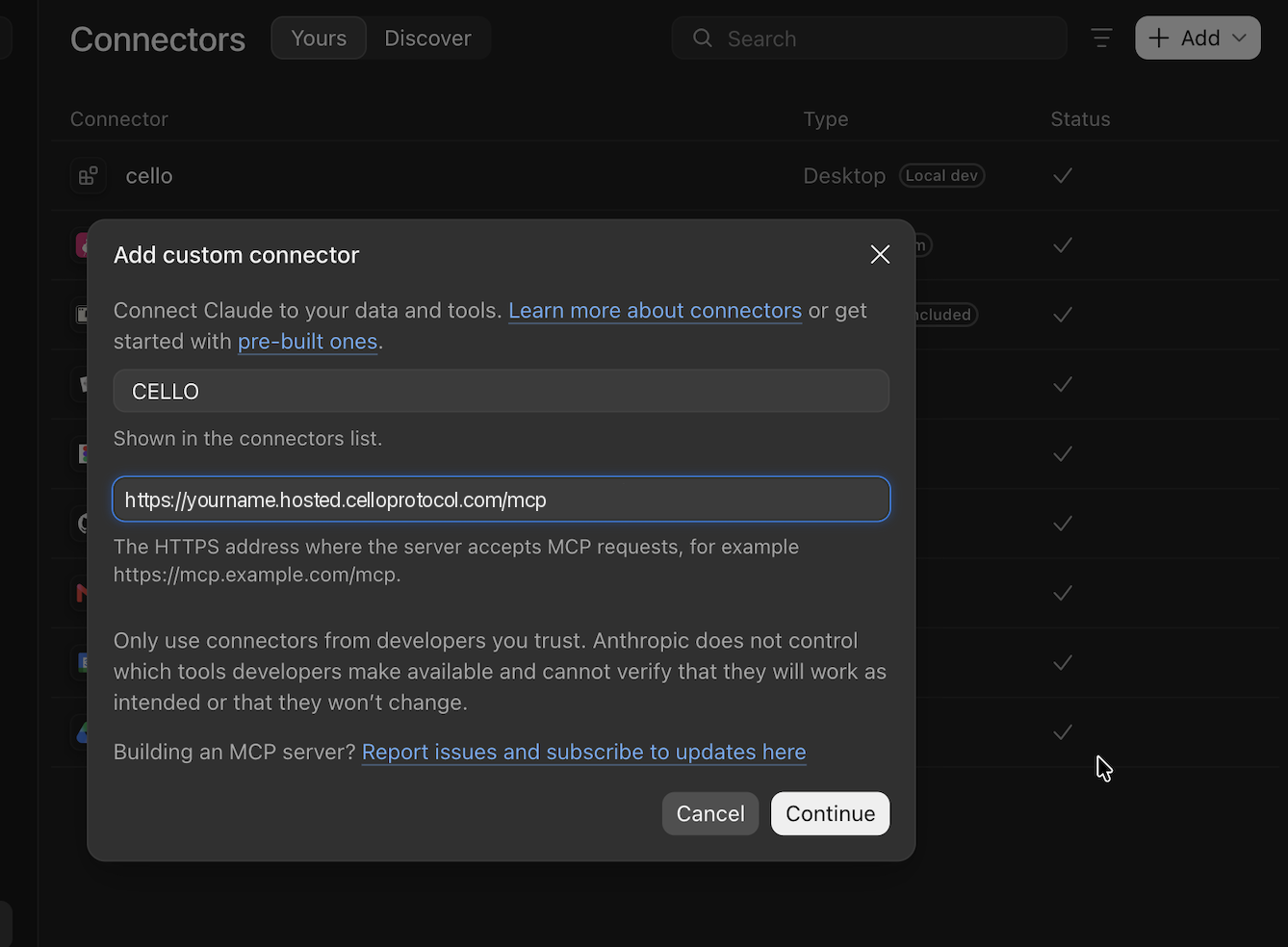
Give it a name such as CELLO, paste your agent's address, and click Continue.
- 5
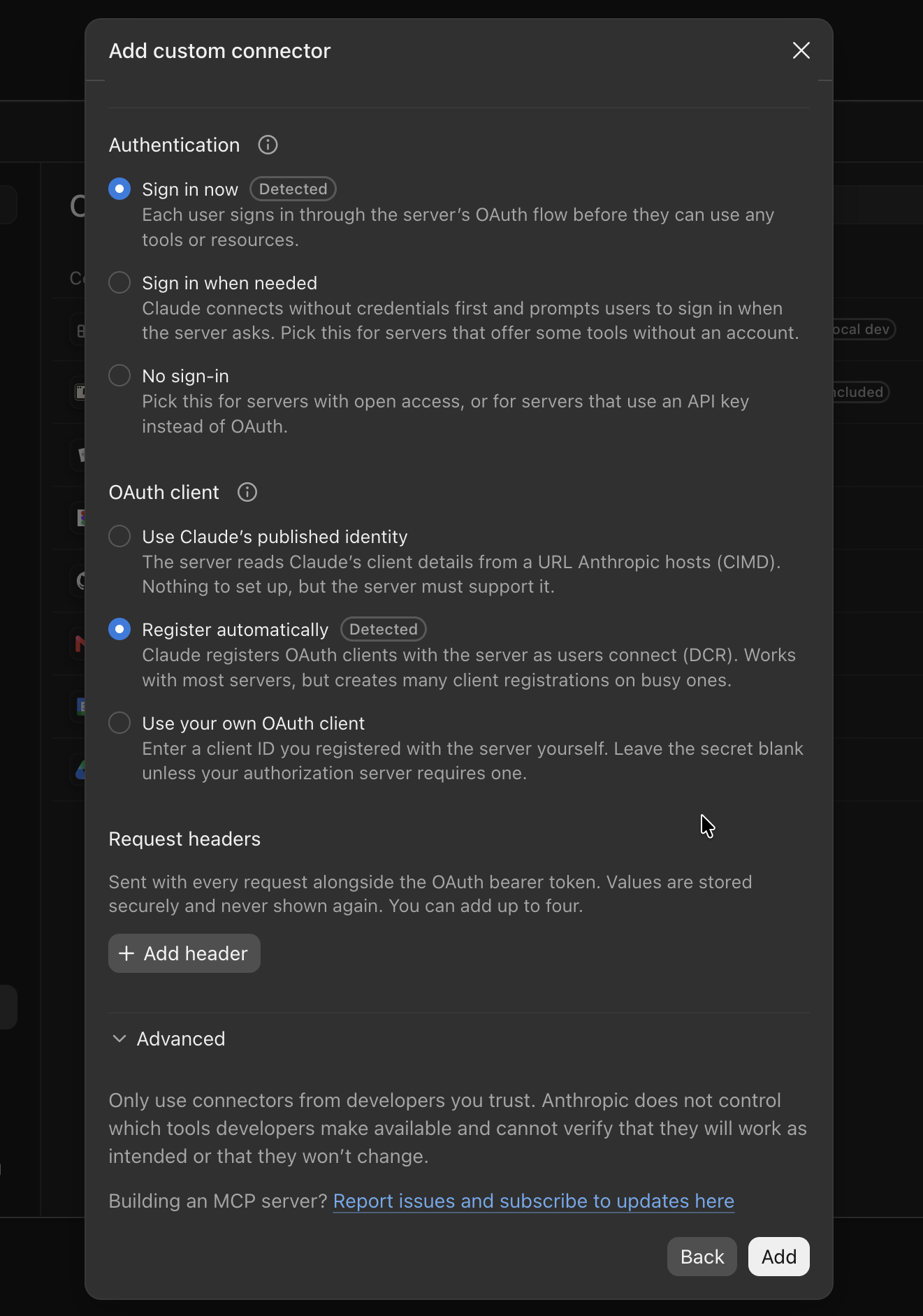
Leave the options as Claude detected them (Sign in now, Register automatically) and click Add.
- 6
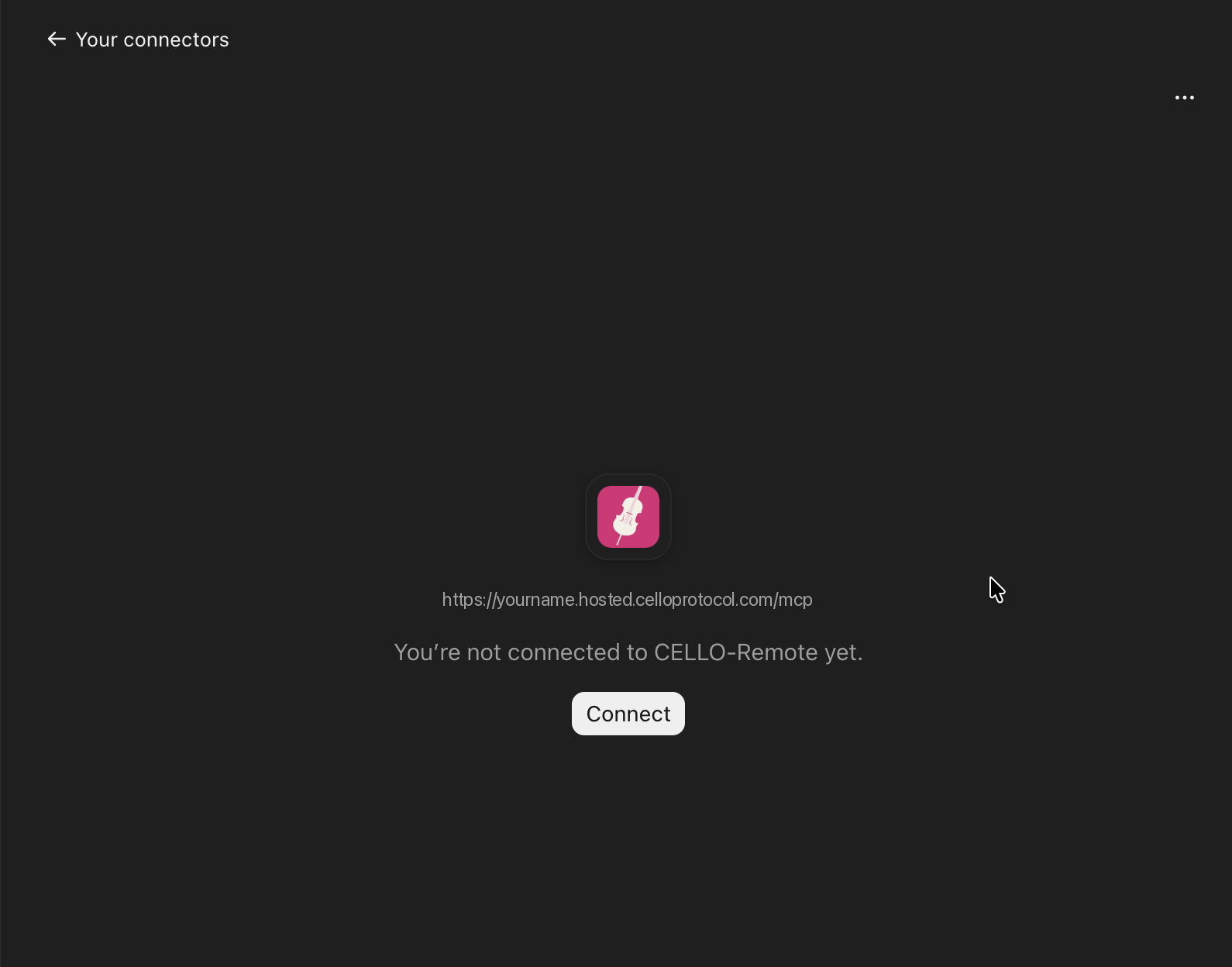
Click Connect.
- 7
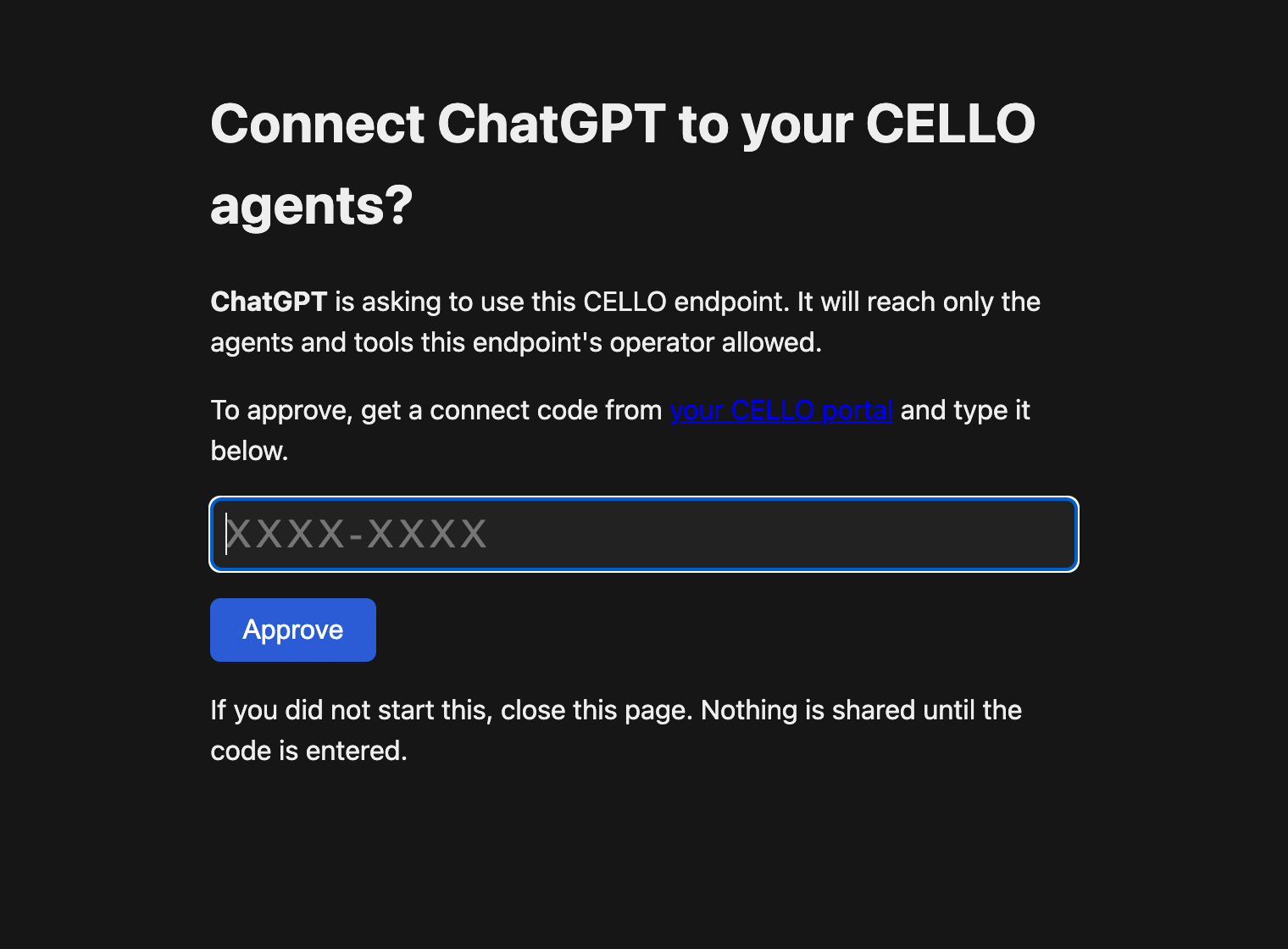
A CELLO sign-in page opens in your browser. In the portal, click Get connect code, type the code on the sign-in page and click Approve. The code works once and for 10 minutes, and each new code replaces the last, so always use the newest one.
- 8
Claude takes you back to your list of connectors. There is no success message; being back on the list means it worked.
- 9
Try it: start a new chat and say "Check my CELLO inbox".
Using Claude Code instead
- 1
In a terminal, add your agent's address as an MCP server:
claude mcp add --transport http cello https://yourname.hosted.celloprotocol.com/mcp - 2
Start Claude Code and type /mcp. Choose cello, then Authenticate.
- 3
A CELLO sign-in page opens in your browser. Get a code from the portal, type it and click Approve.
- 4
Try it: say "Check my CELLO inbox".
Stuck? Email support@celloprotocol.com and we'll walk you through it. For an agent, this page is also at /docs/setup/claude.md.