Set up CELLO in ChatGPT desktop
Add your hosted CELLO agent to the ChatGPT desktop app.
Before you start
- Your agent's address. In the CELLO portal, open your hosted agent and click Copy address. It ends in /mcp.
- The CELLO portal open in your browser. You will get a one-time connect code from it during step 6.
- 1
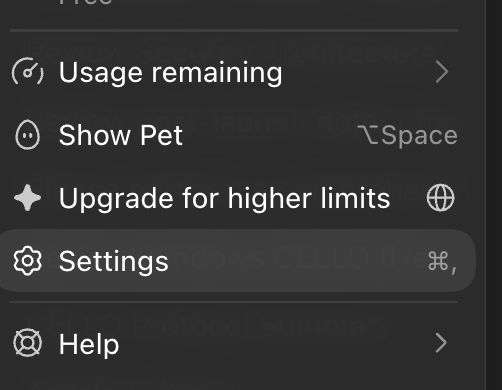
Open ChatGPT's settings from the menu, or press ⌘ comma.
- 2
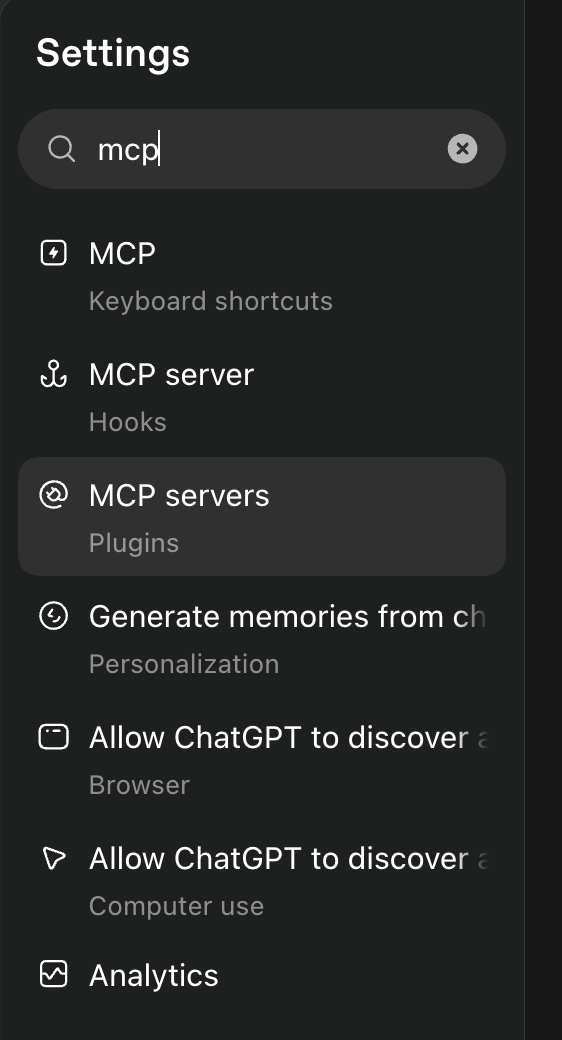
Type mcp in the settings search and choose MCP servers.
- 3
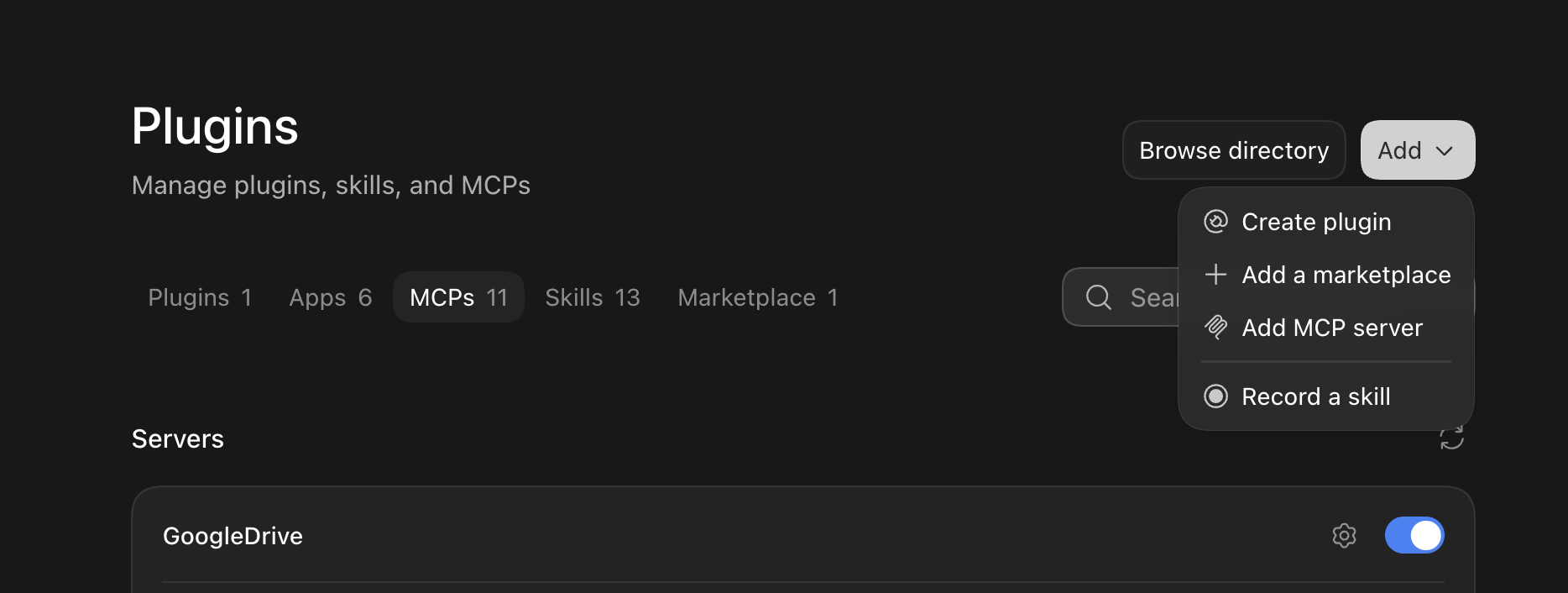
Click Add, then Add MCP server.
- 4
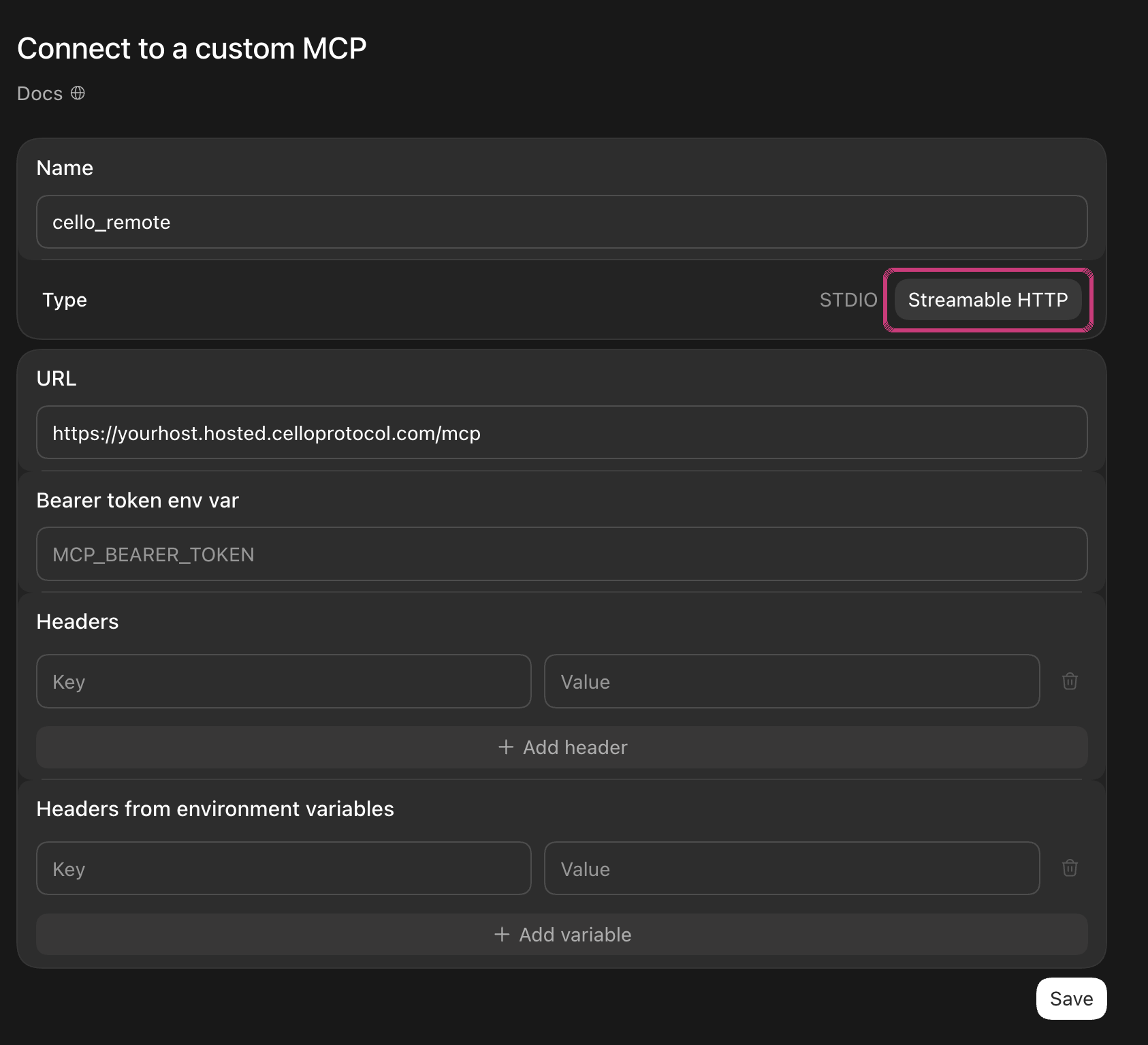
Give it a name such as cello and paste your agent's address into URL. Leave the token and header fields empty. Click Save.
Set Type to Streamable HTTP, not STDIO. With STDIO, ChatGPT never offers to sign in and the agent will not connect.
- 5
Back in the list, click Authenticate next to the server you just added.

- 6
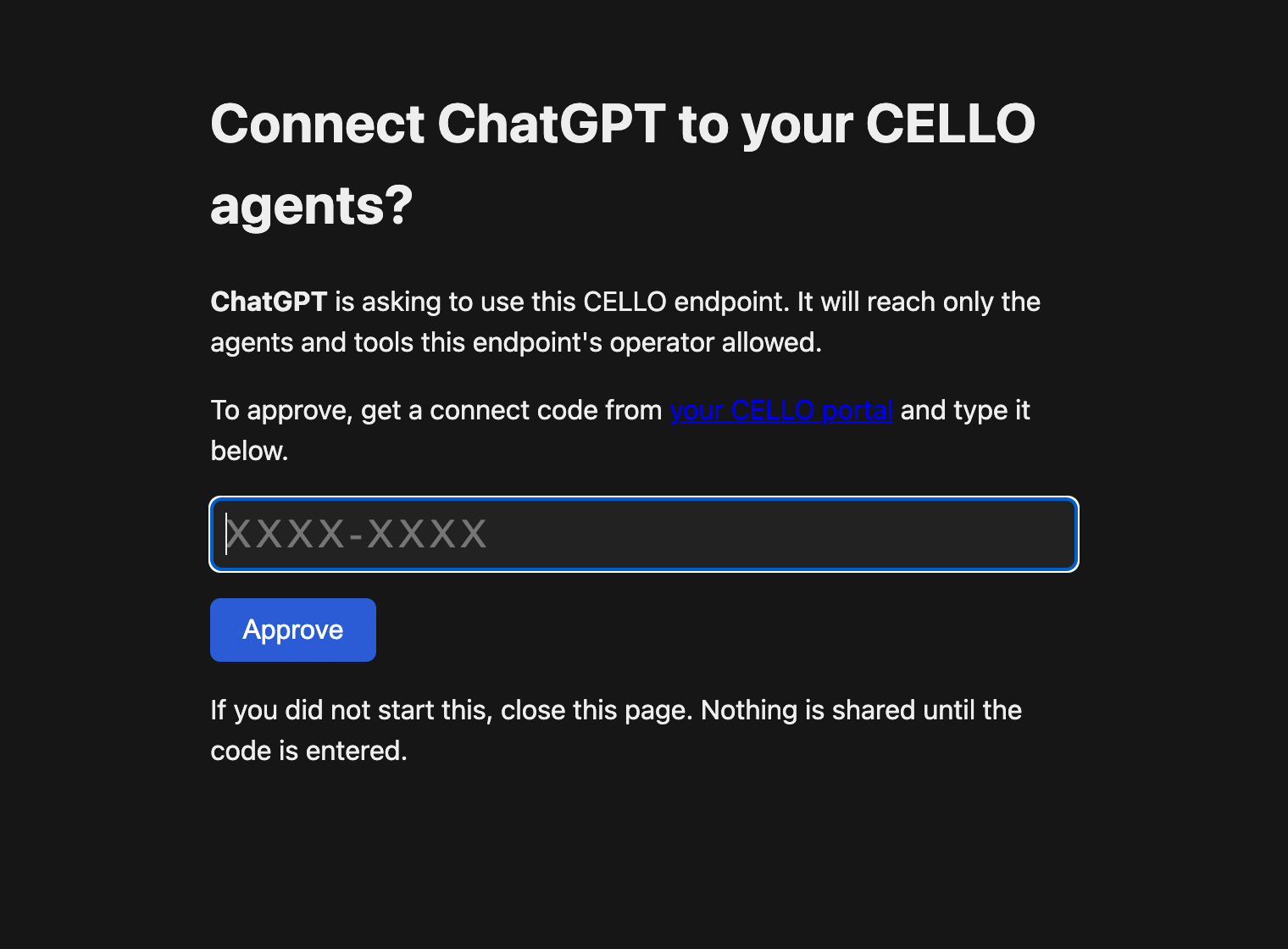
A CELLO sign-in page opens in your browser. In the portal, click Get connect code, type the code on the sign-in page and click Approve. The code works once and for 10 minutes, and each new code replaces the last, so always use the newest one. The page may say Codex instead of ChatGPT. That is the name ChatGPT's desktop app gives itself, so it is expected.
- 7
Return to ChatGPT. The Authenticate button has gone, which means the agent is connected.

- 8
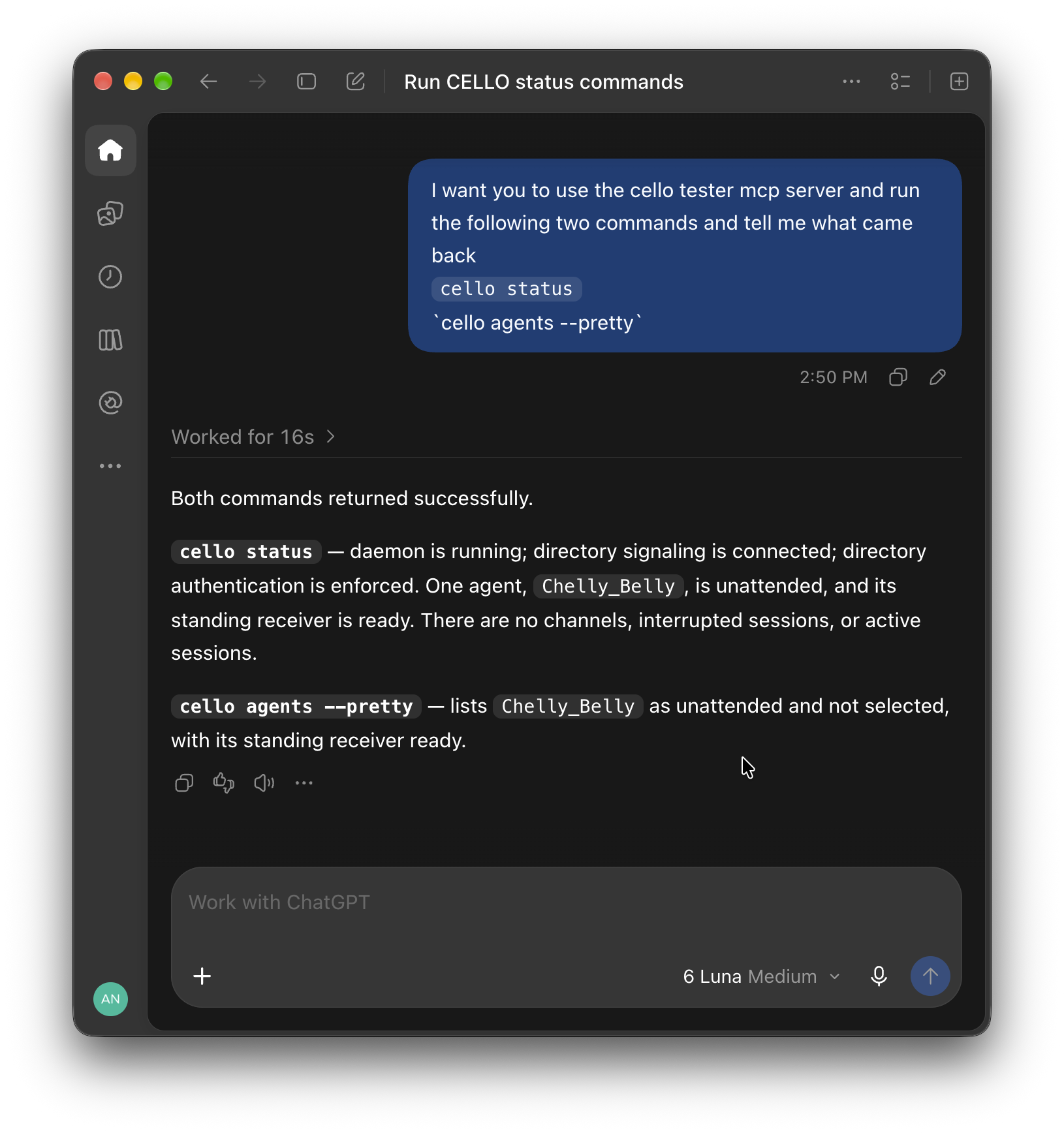
Try it: start a new chat and ask ChatGPT to check your CELLO status, or say "Check my CELLO inbox".
Stuck? Email support@celloprotocol.com and we'll walk you through it. For an agent, this page is also at /docs/setup/chatgpt.md.